


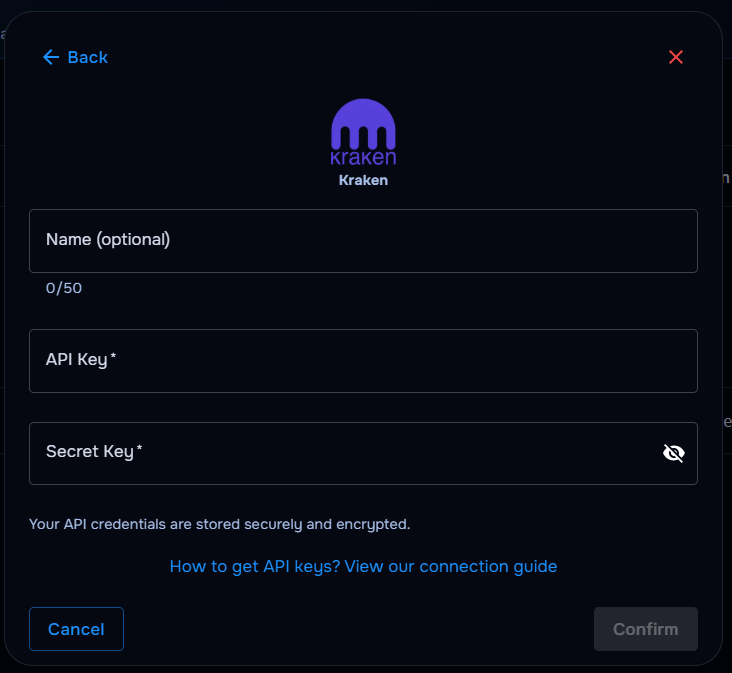
What you’ll need
Before you start
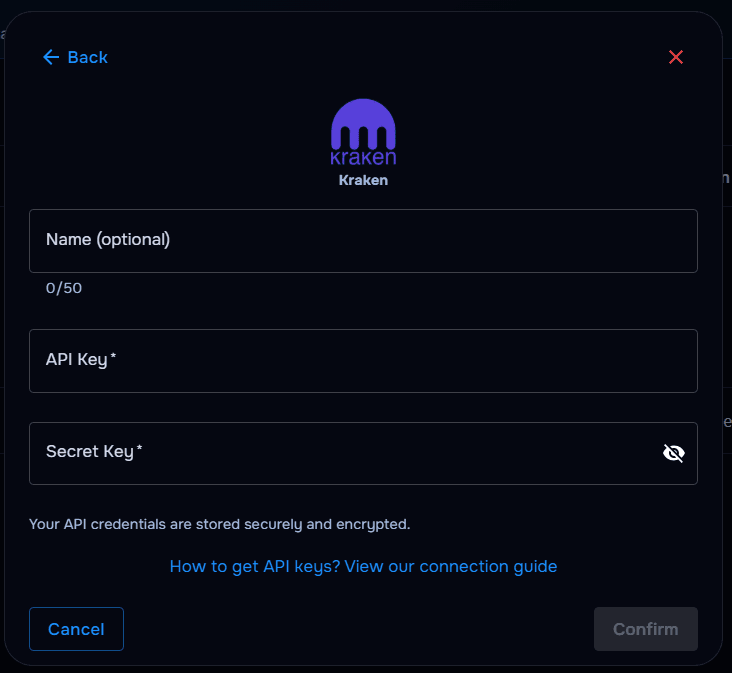
API key
The public key generated inside your Kraken account.
Secret key
The private key shown once when you create the API key — store it securely until pasted into TraderWaves.
Account name (optional)
A short label to identify this Kraken account in TraderWaves — optional, but helpful if you connect more than one.
How the connection works
Overview
TraderWaves verifies your Kraken API key and secret key, then imports eligible fills into your journal for trade syncing and analytics.
For what is imported, how Auto Sync and the Sync button work, and what happens if a trade is missing, read the central syncing article.
Step-by-step setup
Walkthrough
- Sign in to Kraken and open API key management in your account settings.
- Create a new API key labelled for TraderWaves with read-only permissions.
- Copy the API key and secret key — the secret is only shown once.
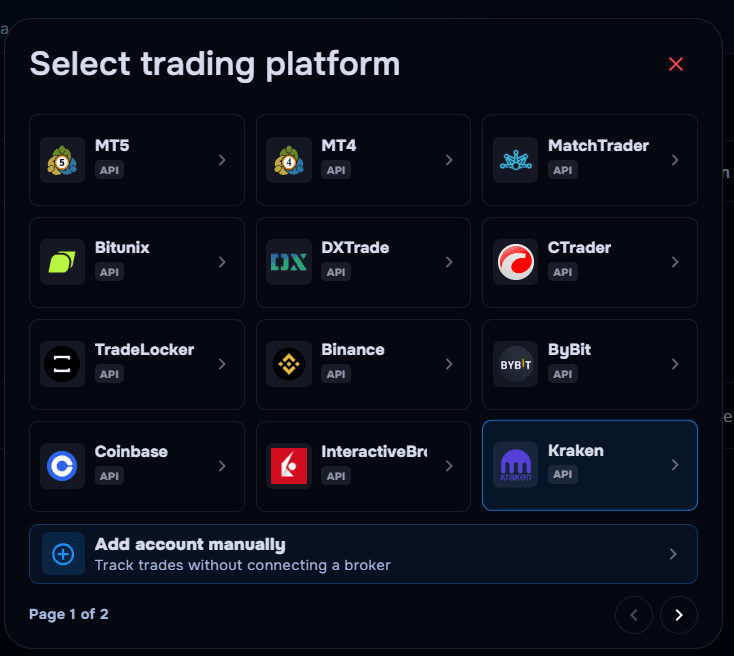
- In TraderWaves, select Kraken, optionally name your account, and paste both credentials exactly.
- Run verification and wait for your trade history to import.
What happens after connecting
After sync
Kraken fills flow into your journal; dashboards, charts, and alerts update as new activity arrives.
Security and permissions
Trust & access
Use read-only API permissions, never enable withdrawal or trading execution, and rotate keys if you suspect they were exposed.
Prefer manual trade tracking?
TraderWaves also supports manual trade journaling when you want full control over how trades are logged.
Troubleshooting
Common issues
Invalid API key or secret key
Likely cause: Whitespace, typos, or a regenerated key invalidated the pasted credentials.
Suggested fix: Create a fresh API key pair in Kraken and reconnect in TraderWaves.
Secret key no longer available
Likely cause: Kraken only displays the secret once at creation.
Suggested fix: Delete the old key, generate a new pair, and update TraderWaves immediately.
Insufficient API permissions
Likely cause: The API key lacks the read scopes needed for trade history.
Suggested fix: Edit the key permissions to allow read-only access to trades and balances, then retry.
Trades not syncing yet
Likely cause: Initial import delay or filters excluding activity.
Suggested fix: Wait for sync to complete; verify date filters and account scope in TraderWaves.
FAQs
Quick answers
What credentials does TraderWaves need for Kraken?
Your API key and secret key are required. An account name is optional, but helpful for telling multiple Kraken connections apart in TraderWaves.
Does TraderWaves need withdrawal permissions?
No — read-only access is enough for journaling and portfolio tracking.
Can I use manual journaling instead?
Yes — use the manual trade journal guide anytime if you prefer not to connect Kraken directly.
What happens if I rotate my API keys?
Update TraderWaves with the new API key and secret key right away to avoid sync gaps.