What you’ll need
Before you start
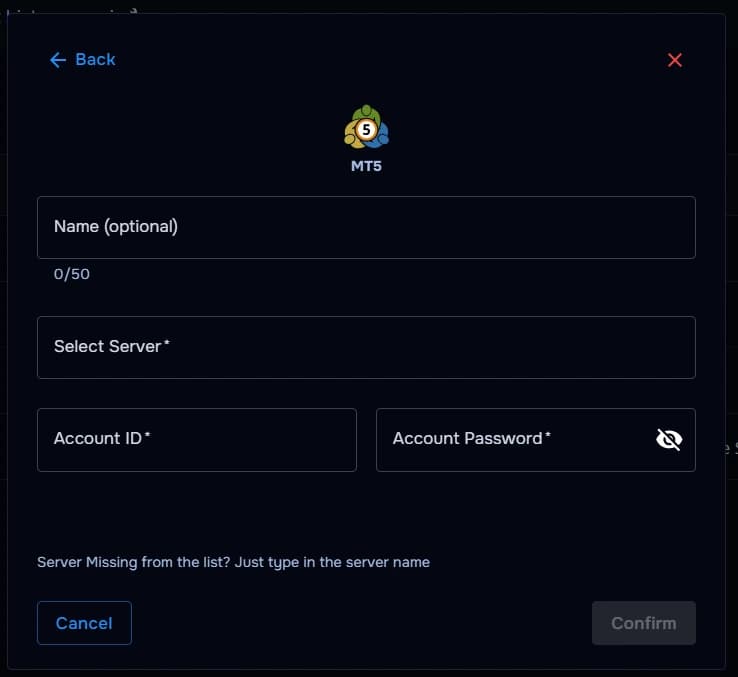
Account ID
Your MT5 account number used to identify the trading account.
Account password
The password linked to the account you want to sync.
Broker server
The server name provided by your broker or prop firm.
Optional: Name your account
Name your account in to easily identify it.
How the connection works
Overview
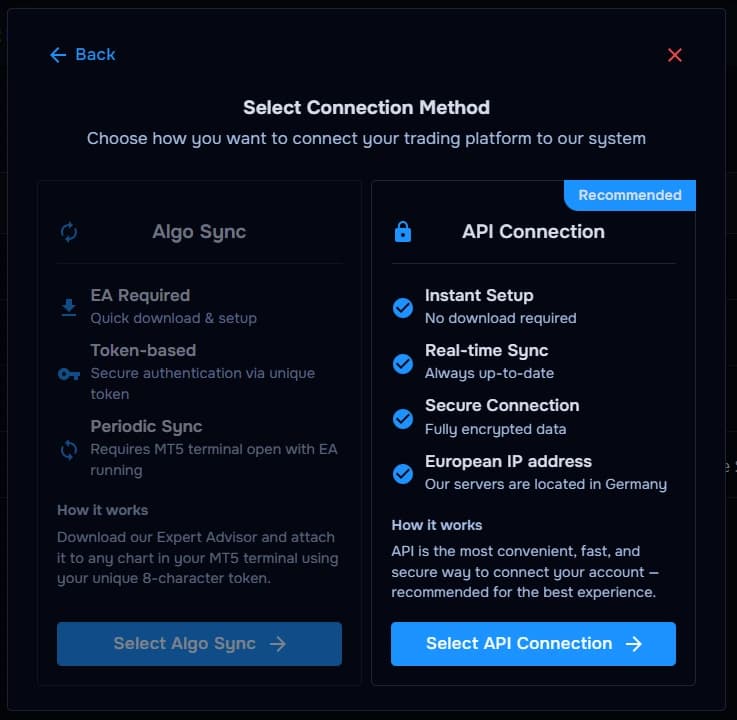
TraderWaves authenticates to your broker's MT5 server using account credentials, then imports eligible trade history into your trading journal.
For what is imported, how Auto Sync and the Sync button work, and what happens if a trade is missing, read the central syncing article.
Step-by-step setup
Walkthrough
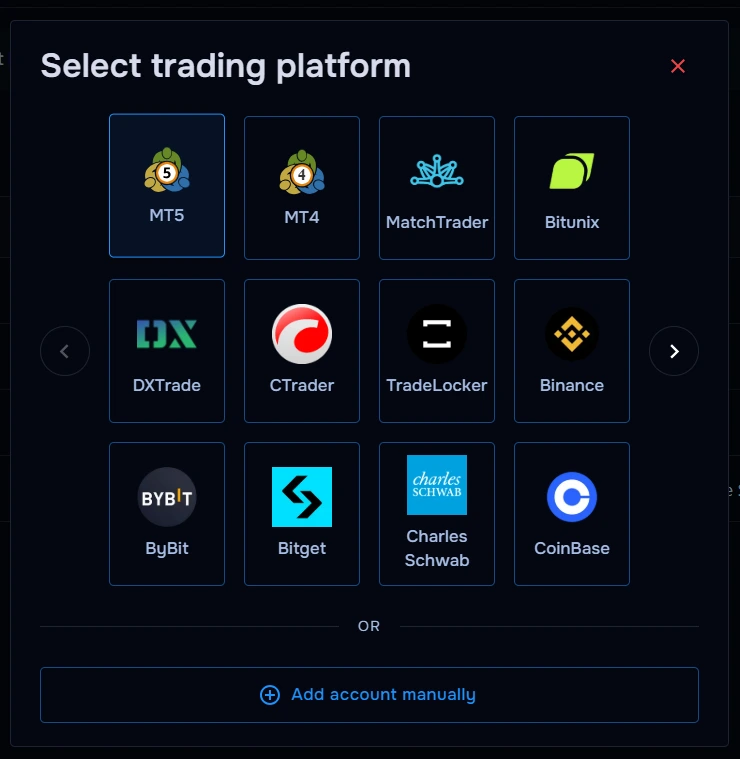
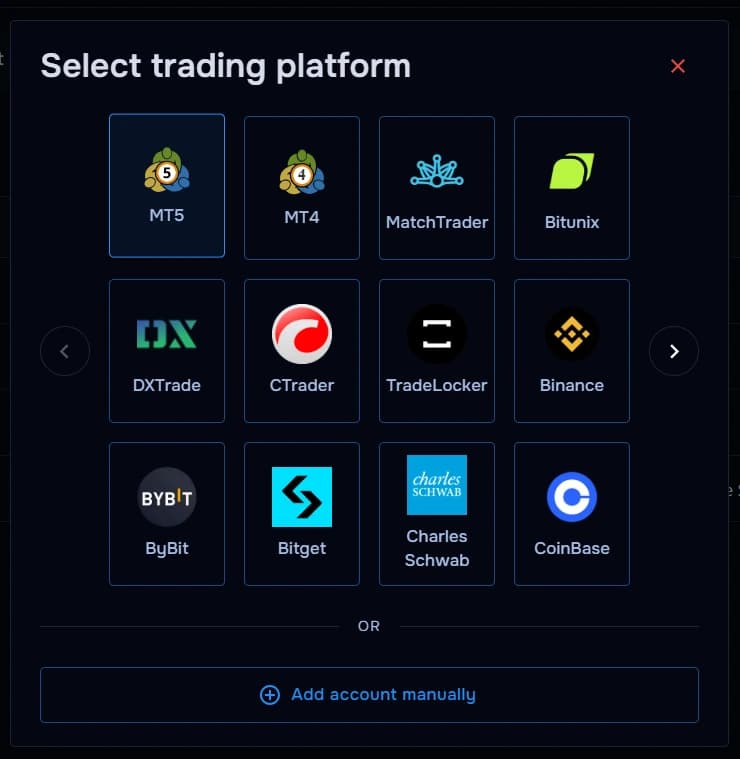
- Open TraderWaves and choose MT5.
- Select your broker server from then server list (often visible in your MT5 terminal login).
- Enter your MT5 account ID and password.
- Optionally name your account in TraderWaves to easily identify it.
- Confirm and wait for connection validation plus initial sync.
What happens after connecting
After sync
All your trades populate your journal; analytics tiles and charts refresh as history arrives. You can start analysing your trading performance immediately.
Security and permissions
Trust & access
Treat credentials like broker logins; prefer investor/read-only passwords when supported; rotate after suspicion.
Prefer manual trade tracking?
TraderWaves also supports manual trade journaling when you want full control over how trades are logged.
Troubleshooting
Common issues
MT5 server is not available
Likely cause: Maintenance or connectivity restrictions.
Suggested fix: Retry later; verify VPN/geo rules with your broker.
Invalid login credentials
Likely cause: Wrong ID/password combo or wrong server line.
Suggested fix: Reset credentials via broker; paste exact server name.
Broker server not found
Likely cause: Typo or rebranded server hostname.
Suggested fix: Simply type the missing server name and it will be added to the server list.
Trades not syncing
Likely cause: Initial backlog or filtered scope.
Suggested fix: Wait for import; check TraderWaves filters.
FAQs
Quick answers
Can I connect both demo and live MT5 accounts?
Yes. You can connect supported demo and live MT5 accounts separately inside TraderWaves.
Does TraderWaves support prop firm MT5 accounts?
Yes. Many prop firm accounts using standard MT5 broker servers can be connected to TraderWaves.
How quickly do MT5 trades sync into TraderWaves?
TraderWaves is designed for low-latency syncing, meaning MT5 trades typically appear shortly after execution.
Can I use an investor password with MT5?
Yes. Investor or read-only passwords can be used where supported for additional account security.
Can I manually journal MT5 trades instead?
Yes. TraderWaves also supports manual trade journaling if you prefer not to connect your MT5 account directly.