Manual entry vs CSV import
Choose a workflow
You will pick one of these after your manual account is created and you open Import Trades from the accounts table — they are two ways to add trade rows, not alternatives to creating the account.
Manual entry
Best for adding a few trades, testing the journal, or logging trades as you go.
CSV import
Best for larger histories from a broker export, spreadsheet, or another journal.
What you’ll need
Before you start
Account name
Required when you create the manual account — pick a name so you can spot the broker, exchange, strategy, or prop firm later.
Account currency
Required — choose the currency (such as USD) so balances and trade results stay consistent on that account.
Initial balance
Optional starting balance so deposits, withdrawals, and performance are easier to follow from day one.
A plan for trade history
After the manual account exists, you will use Import Trades to add rows via manual entry, CSV import, or deposit / withdrawal — you do not enter trades until that account is created.
How manual tracking works
Overview
Manual tracking always starts by creating a manual account. Once that account exists in TraderWaves, open Import Trades from the accounts table and choose how you want to add history: manual entry (one trade at a time), CSV import (bulk from a file), or Deposit / Withdraw (cash movements that are not trades).
CSV import works with spreadsheet exports and trade history files from platforms such as Excel, Notion tables, Google Sheets, broker exports, and other trading journals that support CSV format.
Manual entry and CSV import are alternatives for trade rows — use whichever fits; neither is available until after the manual account is created.
This path does not use automatic broker syncing. Your manual account still feeds journal views, analytics, and performance review next to connected accounts whenever you use both.
Step-by-step setup
Walkthrough
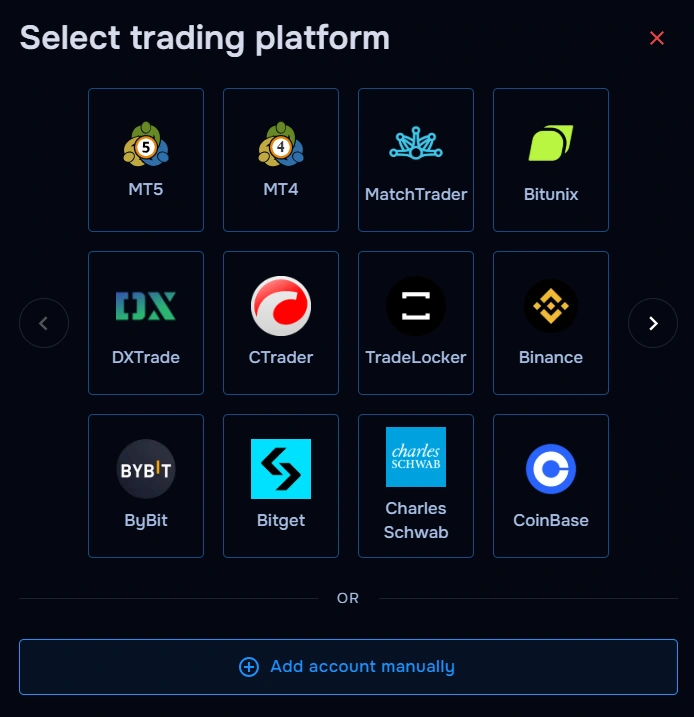
Select manual tracking
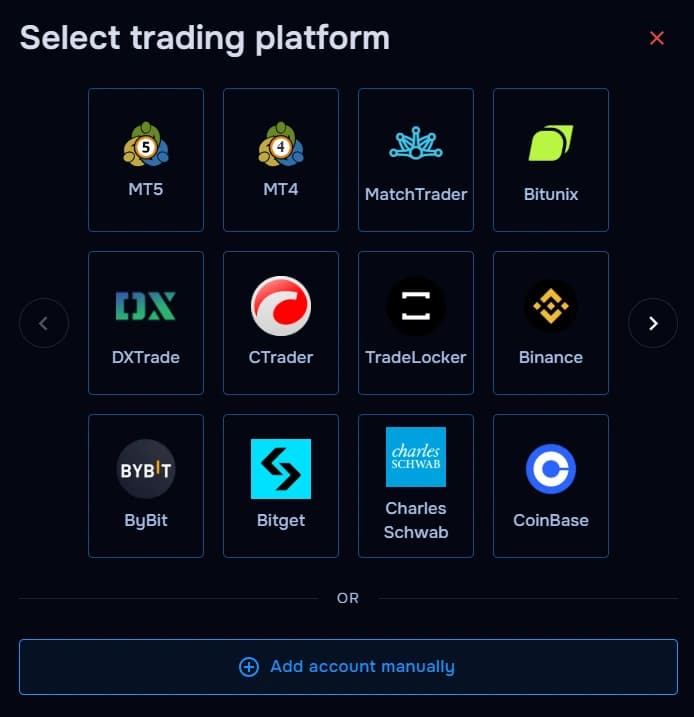
When you add an account, choose Manual tracking / Add Account Manually (or the same manual path in your workspace) so TraderWaves opens the manual flow instead of a broker or exchange integration.
Step 1: Select manual tracking Create a manual account
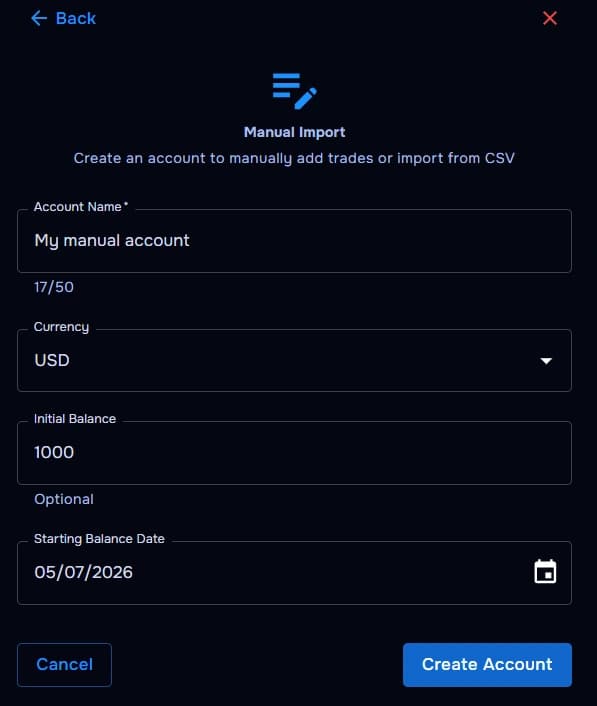
Use Add Account Manually / Manual Import and create a manual account inside TraderWaves. Add an account name, choose the currency, and optionally enter an initial balance.
- Account Name is required.
- Currency is required.
- Initial Balance is optional.
Step 2: Create a manual account Open Import Trades
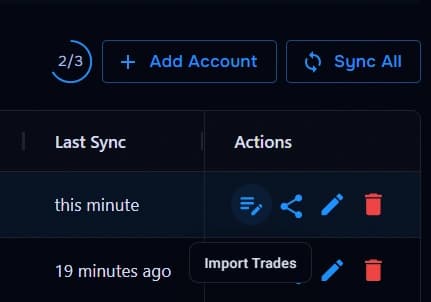
After the manual account appears in your accounts table, find it in the list and use the Actions column to open Import Trades. You need a saved manual account before this option is meaningful — there is no trade history path until that row exists.
From Import Trades, pick the method that fits your situation (you can return later and choose a different one):
- Manual entry — add trades one by one.
- CSV Import — upload trade history from a spreadsheet, broker export, or another journal.
- Deposit / Withdraw — record balance changes that are not trades.
Step 3: Open Import Trades Add trades manually
Open the Manual entry tab when you want to type a trade yourself. Enter symbol, order type, open time, close time, open price, close price, lots, and profit. Expand optional fields when you want commission, fees, swap, stop loss, take profit, comments, ticket, or balance after (when the form supports them).
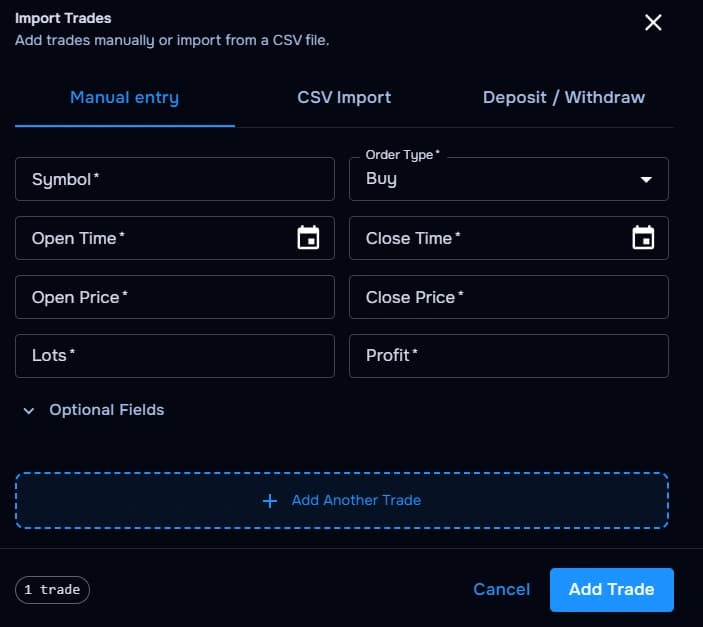
Step 4: Add trades manually Import trades from CSV
Choose CSV Import when you already have multiple trades in a spreadsheet or export. Upload your file, review required columns, validate, then import.
Required CSV fields
symbolorder_typeopen_timeclose_timeopen_priceclose_pricelotsprofit
Optional CSV fields
ticketswapcommissionfeestop_losstake_profitcommentbalance_after
Column names are flexible — common aliases are recognised automatically where the importer supports them.
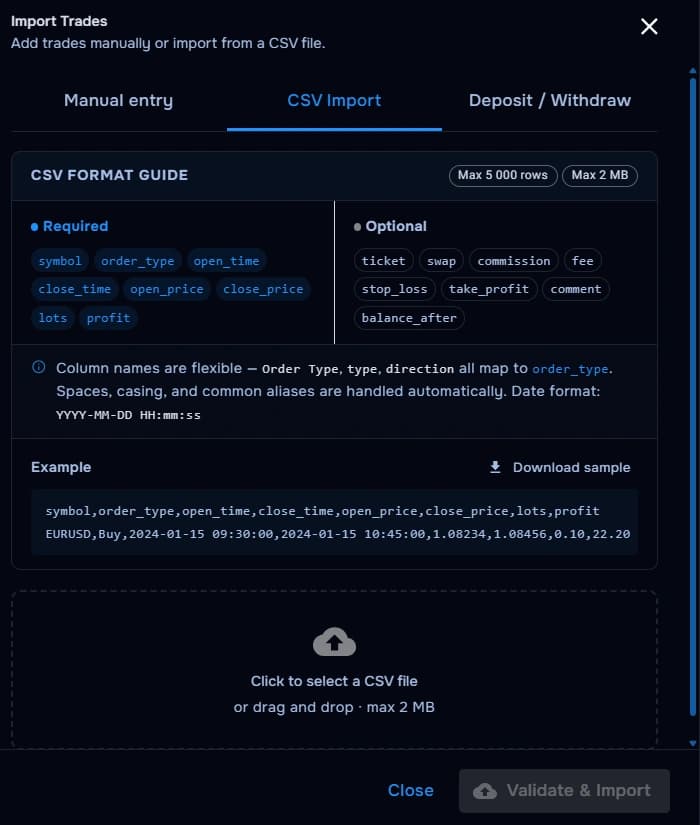
Step 5: Import trades from CSV Record deposits and withdrawals
Use Deposit / Withdraw inside Import Trades to log balance changes that are not trades. That keeps your manual account balance and performance history aligned with funding in and out.
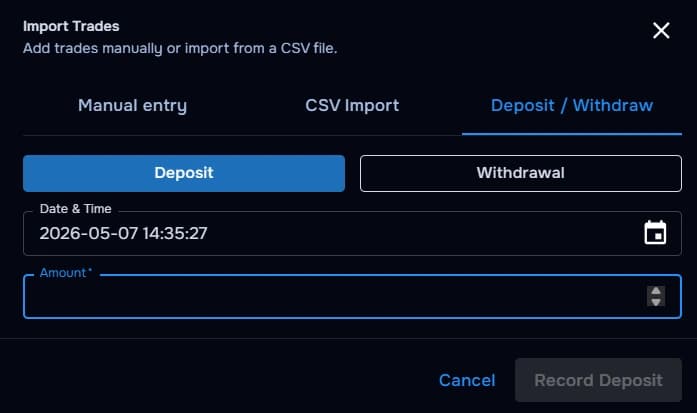
Step 6: Record deposits and withdrawals
What you can track manually
Markets & setups
These all work once your manual account exists and you use Import Trades. Manual tracking is not only a fallback — it is ideal when you want control, privacy, flexibility, or a custom history outside standard integrations.
- Forex trades
- Crypto trades
- Futures trades
- Stocks
- Prop firm accounts
- Demo accounts
- Unsupported brokers
- Spreadsheet trade history
Security and privacy
No broker login required
Manual journaling does not require broker credentials, API keys, or OAuth authorization. You choose what trade data enters TraderWaves — but you still create the manual account first, then add rows by typing them in or importing a CSV you already hold.
Troubleshooting
Common issues
My CSV file will not import
Likely cause: You may be trying to import trades before a manual account row exists, or your CSV is incomplete.
Suggested fix: Create the manual account first, then use Import Trades → CSV Import. Confirm your file includes symbol, order_type, open_time, close_time, open_price, close_price, lots, and profit.
My trade times look wrong
Likely cause: The date or time format may not match what the importer expects.
Suggested fix: Use a supported format from the CSV guide — such as YYYY-MM-DD HH:mm:ss — and re-export.
My profit does not match my broker
Likely cause: Fees, commission, swap, or cash movements may be missing from the rows you imported.
Suggested fix: Add optional fields like commission, fee, swap, and balance_after when the form or CSV supports them; record deposits and withdrawals separately.
I cannot create a manual account
Likely cause: Required fields such as account name or currency may be empty.
Suggested fix: Enter an account name, pick a currency, then create the account again.
I only have a few trades to add
Likely cause: CSV import is optional for very small histories, and Import Trades needs a saved manual account.
Suggested fix: Create the manual account, open Import Trades, then use Manual entry to add trades one by one.
Prefer automatic syncing?
If your broker, exchange, or platform is supported, you can connect it directly to TraderWaves and let your trades sync automatically.
What happens after adding trades manually
Journal & analytics
Once trades are saved, they show up in your TraderWaves journal so you can review performance, attach notes, spot patterns, and compare manual accounts next to connected accounts. Depending on your plan and features, you can also use analytics, charts, and your performance dashboard for trade review — the same tooling you use after an automatic sync, now fed by data you control.
FAQs
Quick answers
Can I use TraderWaves without connecting a broker?
Yes. Create a manual account first, then use Import Trades to add rows yourself without connecting a broker, exchange, or platform.
Can I import trades from a spreadsheet?
Yes. After your manual account is saved, open Import Trades, choose CSV Import, and upload a file that includes the required trade columns.
What markets can I track manually?
You can manually journal forex, crypto, futures, stocks, prop firm activity, demo accounts, and other unsupported venues.
Do I need API keys for manual journaling?
No. Manual journaling does not require API keys, broker passwords, or OAuth authorization.
Can I add fees or commissions manually?
Yes. Use optional fields on manual entry or CSV rows for fees, commission, swap, stops, targets, and comments when supported.
Can I switch from manual tracking to automatic syncing later?
Yes. Start with manual data, then link a supported integration whenever you want automatic syncing for that account.